Automated Invoicing for Small Businesses: Tools, Tips, and Cash‑Flow Boosters
Why Automate Invoicing?
Small businesses spend a disproportionate amount of time on manual paperwork. Creating an invoice, double‑checking totals, attaching supporting documents, and then emailing a client can take 10‑15 minutes per transaction. Multiply that by dozens of invoices each month and the administrative load quickly erodes profit margins. More importantly, the lag between delivering an invoice and receiving payment—measured as Days Sales Outstanding (DSO)—directly impacts cash availability for payroll, inventory, and growth.
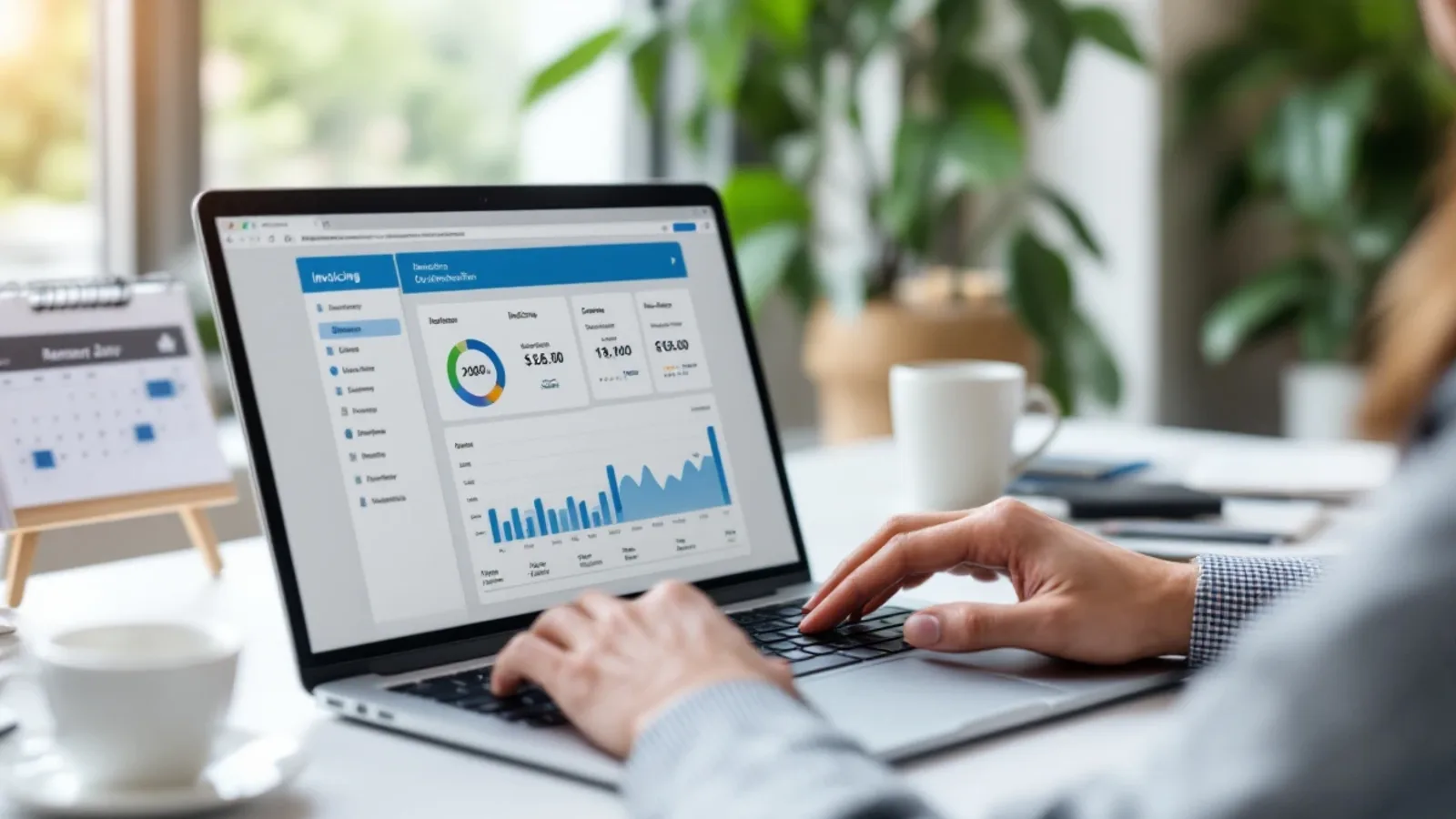
Automation tackles both problems. By generating invoices from a template, auto‑populating line items from your sales system, and delivering them instantly via email or SMS, you eliminate data‑entry errors and free up staff for revenue‑generating work. Automated reminder sequences keep the payment conversation moving without a phone call, and most platforms provide analytics that let you track DSO trends over time.
Choosing the Right Tool
The market now offers several mature, cloud‑based invoicing solutions that integrate natively with popular accounting packages. Below is a concise comparison of the five most widely adopted tools for small businesses. All links point to verified sources.
QuickBooks Online
Features: Automatic invoice creation from estimates, recurring billing, and a built‑in “Invoice reminders” scheduler that can be set for 1, 5, and 10‑day intervals. The platform also syncs every invoice and payment back to the core ledger, ensuring a single source of truth.
Why it works for small teams: QuickBooks is already the accounting backbone for many SMBs, so adding invoicing eliminates the need for a separate system. The reminder engine has been shown to reduce DSO by up to 7 days in the QuickBooks user community.
Learn more: QuickBooks invoicing overview.
Stripe Billing & Invoicing
Features: API‑driven invoice generation, PDF creation on the fly, and one‑click email delivery. Stripe’s “Automatic reminder emails” trigger after 3, 7, and 14 days of non‑payment and include a direct payment link that supports credit cards, ACH, and local payment methods.
Why it works for small teams: If you already accept online payments through Stripe, the invoicing module adds no extra merchant fees and provides real‑time payment status updates. Stripe reports that automated reminders cut DSO for SaaS and small‑merchant accounts by an average of 5‑6 days.
Learn more: Stripe invoicing guide and Stripe billing documentation.
Square Invoices
Features: Dashboard and mobile app let you create, schedule, and auto‑send invoices. The “Payment reminders” feature can repeat daily until the invoice is paid, and Square provides a case‑study showing a 4‑day DSO reduction for retail merchants.
Why it works for small teams: Square’s hardware ecosystem (POS, card readers) pairs naturally with its invoicing product, making it ideal for businesses that sell both in‑person and online.
Learn more: Square invoicing help center.
Zoho Invoice
Features: Fully customizable templates, recurring invoices, and three‑tier auto‑reminders (first, second, final). Zoho also offers a “Best practices” guide for linking invoices to Zoho Books or external accounting software.
Why it works for small teams: Zoho’s free tier supports up to 5 customers, which is perfect for freelancers or micro‑businesses testing automation.
Learn more: Zoho Invoice features.
Square vs. Stripe vs. QuickBooks: Which to Pick?
| Criterion | QuickBooks | Stripe | Square |
|---|---|---|---|
| Existing accounting system | Already integrated | Needs separate sync | Separate sync |
| Payment methods supported | Bank‑transfer, credit card via QuickBooks Payments | Credit card, ACH, Apple Pay, local | Credit card, Apple Pay, Google Pay |
| Pricing (per month) | $25‑$70 (incl. accounting) | $0 base, $0.25 per invoice + transaction fees | $0‑$20 (per invoice) |
| Best for | Businesses that already use QuickBooks for bookkeeping | Online‑first businesses that need flexible payment links | Retail‑oriented businesses with Square POS |
Setting Up Smart Reminder Workflows
A reminder schedule that is too aggressive can alienate customers, while one that is too lax leaves cash on the table. The following three‑step framework works across all platforms:
- First reminder – 2 days after due date
- Keep the tone friendly. Include a copy of the original invoice and a direct payment button.
- Second reminder – 7 days after due date
- Add a brief note about any late‑fee policy you have. If you charge a modest fee (e.g., 1 % of the invoice amount), state it clearly.
- Final reminder – 14 days after due date
- Mention that the account will be escalated to a collections process if payment is not received within the next 5 days.
Most platforms let you automate this entire sequence. In QuickBooks, go to Gear → Custom Form Styles → Reminders; in Stripe, enable “Automatic reminder emails” in the Billing settings; in Square, toggle “Payment reminders” under Invoices → Settings.
Measuring Impact
After implementing reminders, track DSO weekly. A simple spreadsheet that records invoice date, due date, reminder dates sent, and payment date will reveal trends. If DSO does not improve after two billing cycles, consider tightening the reminder cadence or adding a small late‑fee incentive.
Integrating Invoicing with Accounting Software
Seamless integration prevents duplicate data entry and ensures that revenue, tax, and expense reports stay accurate. Below are best‑practice steps that apply to QuickBooks, Xero, and other popular ledgers.
- Map chart‑of‑accounts – Align invoice revenue accounts with the corresponding income accounts in your accounting system. Most platforms provide a mapping wizard (e.g., Stripe’s “Connect to accounting” checklist).
- Enable two‑way sync – Turn on automatic posting of paid invoices and received payments. In QuickBooks, this is the default; in Stripe, enable the “Sync with QuickBooks” toggle; in Square, use the “Sync” button after each batch.
- Reconcile taxes – Ensure that sales tax collected on invoices is recorded in the correct tax liability account. Zoho Invoice, for example, auto‑populates tax codes based on your regional settings.
- Audit regularly – Run a monthly reconciliation report to catch any mismatches between the invoicing platform and the accounting ledger.
By following these steps, you eliminate the manual “copy‑paste” step that often introduces errors and delays cash‑flow reporting.
Step‑by‑Step Implementation Checklist
| ✅ | Action |
|---|---|
| 1 | Choose an invoicing tool that matches your existing payment and accounting stack (QuickBooks, Stripe, or Square are top choices). |
| 2 | Set up automated invoice templates with your branding, payment terms, and tax settings. |
| 3 | Configure a three‑tier reminder schedule (2‑day, 7‑day, 14‑day). |
| 4 | Connect the invoicing tool to your accounting software using the built‑in integration wizard. |
| 5 | Map revenue and tax accounts to ensure accurate bookkeeping. |
| 6 | Run a pilot with 5‑10 customers, monitor DSO, and adjust reminder timing if needed. |
| 7 | Roll out to all clients and schedule a monthly review of DSO trends. |
Next Steps with WorkSteady
WorkSteady offers a free “next‑step” checklist that walks you through each of the items above, plus a live chat where you can ask specific questions about your setup. Visit our WorkSteady pricing page to see plans that include one‑on‑one onboarding, or head to the Ask WorkSteady page for an immediate answer.
For a deeper dive into invoicing automation, read our related post “Automate Invoicing to Boost Cash Flow for Small Businesses”. If you’re just getting started with AI‑driven business guidance, explore the WorkSteady small‑business AI guidance homepage.
By selecting a tool that fits your workflow, automating polite yet firm reminders, and syncing every invoice to your accounting system, small‑business owners can reliably shave days off their cash‑conversion cycle. The result is more predictable cash flow, fewer late‑payment headaches, and more time to focus on growth.
Sources and further reading
Use these primary references when checking the guidance above:
Sources
- Stripe Invoicing: Get paid faster with automated reminders — Stripe
- quickbooks.intuit.com — quickbooks.intuit.com
- quickbooks.intuit.com — quickbooks.intuit.com
- stripe.com — stripe.com
- squareup.com — squareup.com
- www.zoho.com — zoho.com
- U.S. Small Business Administration — SBA
- Internal Revenue Service — IRS
This article was generated through WorkSteady's editorial workflow. Review the cited sources before acting on legal, tax, or financial topics.
Get a direct answer for your business.
Tell WorkSteady what is happening and get one practical action you can take today.